One of the most common use cases for an extension is to modify a web page. For example, an extension might want to change the style applied to a page, hide particular DOM nodes, or inject extra DOM nodes into the page.
There are two ways to do this with WebExtensions APIs:
Either way, these scripts are called content scripts , and are different from the other scripts that make up an extension:
In this article we'll look at both methods of loading a script.
First of all, create a new directory called "modify-page". In that directory, create a file called "manifest.json", with the following contents:
{
  "manifest_version": 2,
  "name": "modify-page",
  "version": "1.0",
  "content_scripts": [
    {
      "matches": ["https://developer.mozilla.org/*"],
      "js": ["page-eater.js"]
    }
  ]
}
content_scripts
key is how you load scripts into pages that match URL patterns. In this case,
content_scripts
instructs the browser to load a script called "page-eater.js" into all pages under
https://developer.mozilla.org/
.
注意:
由于
"js"
property of
content_scripts
is an array, you can use it to inject more than one script into matching pages. If you do this the pages share the same scope, just like multiple scripts loaded by a page, and they are loaded in the order that they are listed in the array.
注意:
content_scripts
key also has a
"css"
property that you can use to inject CSS stylesheets.
Next, create a file called "page-eater.js" inside the "modify-page" directory, and give it the following contents:
document.body.textContent = "";
var header = document.createElement('h1');
header.textContent = "This page has been eaten";
document.body.appendChild(header);
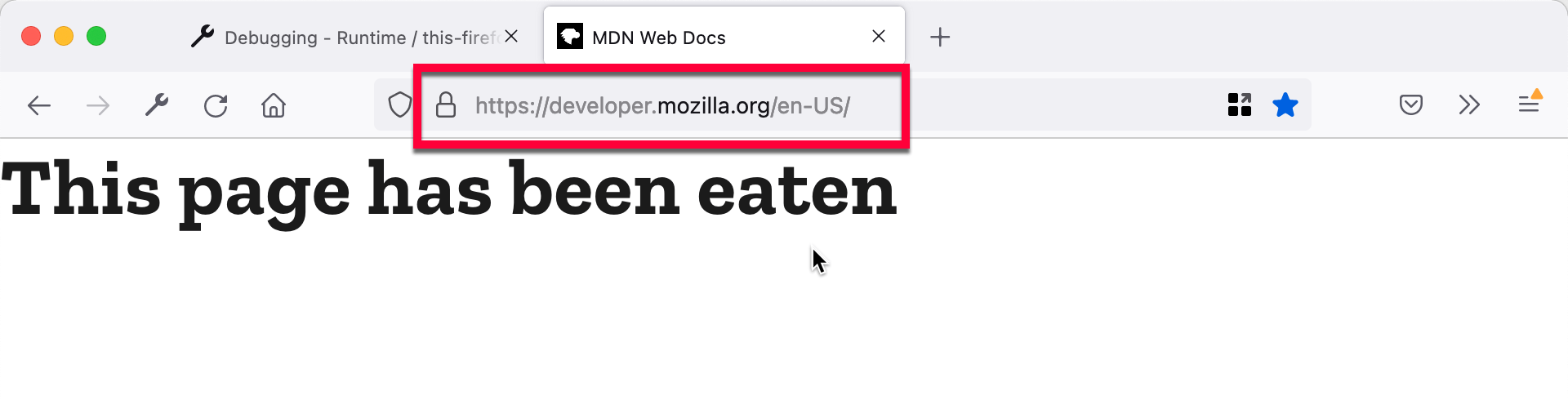
现在 install the extension , and visit https://developer.mozilla.org/ . The page should look like this:
What if you still want to eat pages, but only when the user asks you to? Let's update this example so we inject the content script when the user clicks a context menu item.
First, update "manifest.json" so it has the following contents:
{
  "manifest_version": 2,
  "name": "modify-page",
  "version": "1.0",
  "permissions": [
    "activeTab",
    "contextMenus"
  ],
  "background": {
    "scripts": ["background.js"]
  }
}
Here, we've removed the
content_scripts
key, and added two new keys:
permissions
: To inject scripts into pages we need permissions for the page we're modifying. The
activeTab
permission
is a way to get this temporarily for the currently active tab. We also need the
contextMenus
permission to be able to add context menu items.
background
: We're using this to load a persistent
"background script"
called
background.js
, in which we'll set up the context menu and inject the content script.
Let's create this file. Create a new file called
background.js
in the
modify-page
directory, and give it the following contents:
browser.contextMenus.create({
  id: "eat-page",
  title: "Eat this page"
});
browser.contextMenus.onClicked.addListener(function(info, tab) {
  if (info.menuItemId == "eat-page") {
    browser.tabs.executeScript({
      file: "page-eater.js"
    });
  }
});
In this script we're creating a
context menu item
, giving it a specific id and title (the text to be displayed in the context menu). Then we set up an event listener so that when the user clicks a context menu item, we check to see if it is our
eat-page
item. If it is, we inject "page-eater.js" into the current tab using the
tabs.executeScript()
API. This API optionally takes a tab ID as an argument: we've omitted the tab ID, which means that the script is injected into the currently active tab.
At this point the extension should look like this:
modify-page/
    background.js
    manifest.json
    page-eater.js
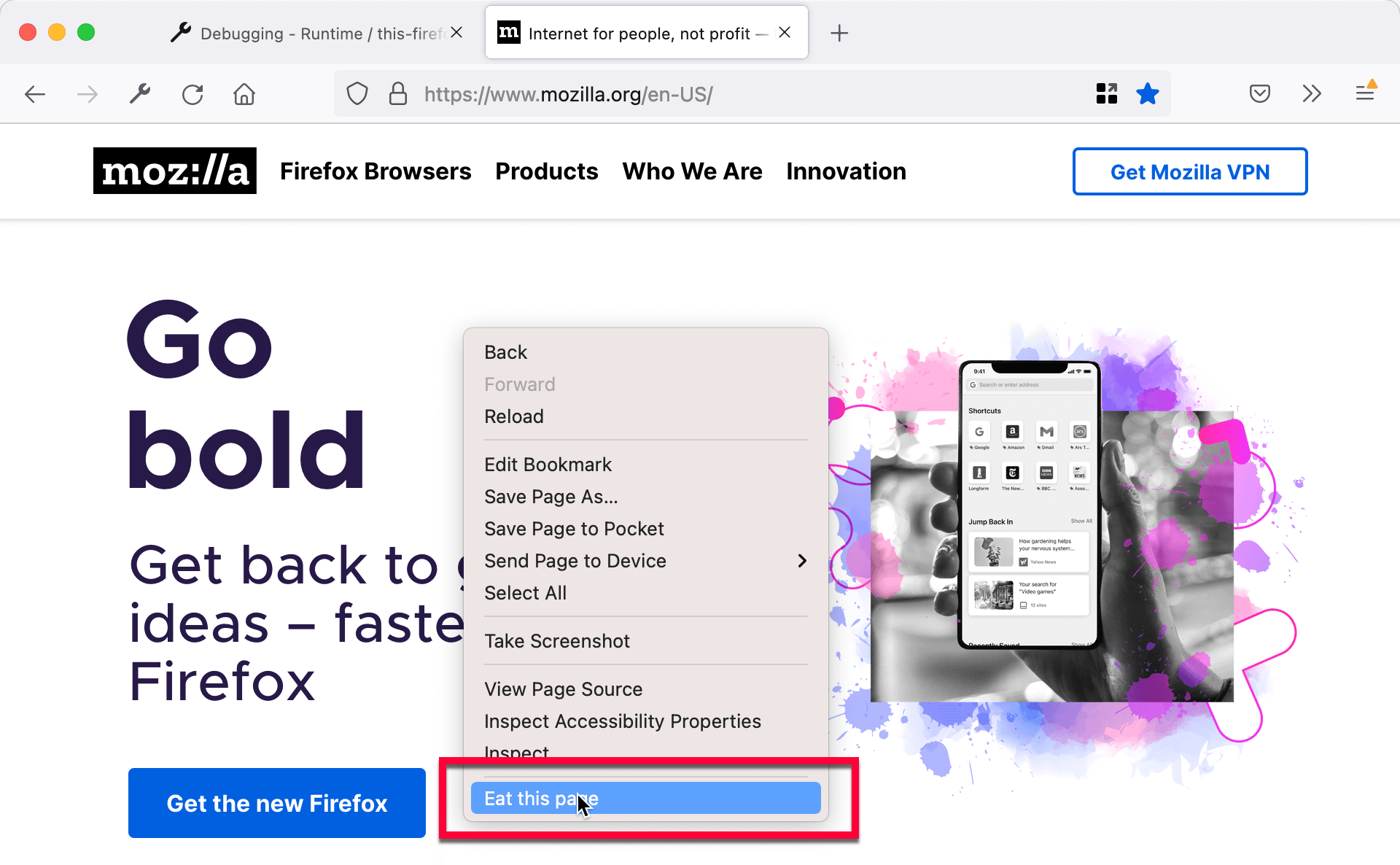
现在 reload the extension , open a page (any page, this time) activate the context menu, and select "Eat this page":
Content scripts and background scripts can't directly access each other's state. However, they can communicate by sending messages. One end sets up a message listener, and the other end can then send it a message. The following table summarizes the APIs involved on each side:
| In content script | In background script | |
|---|---|---|
| Send a message |
browser.runtime.sendMessage()
|
browser.tabs.sendMessage()
|
| Receive a message |
browser.runtime.onMessage
|
browser.runtime.onMessage
|
注意: In addition to this method of communication, which sends one-off messages, you can also use a connection-based approach to exchange messages . For advice on choosing between the options, see Choosing between one-off messages and connection-based messaging .
Let's update our example to show how to send a message from the background script.
First, edit
background.js
so that it has these contents:
browser.contextMenus.create({
  id: "eat-page",
  title: "Eat this page"
});
function messageTab(tabs) {
  browser.tabs.sendMessage(tabs[0].id, {
    replacement: "Message from the extension!"
  });
}
function onExecuted(result) {
    let querying = browser.tabs.query({
        active: true,
        currentWindow: true
    });
    querying.then(messageTab);
}
browser.contextMenus.onClicked.addListener(function(info, tab) {
  if (info.menuItemId == "eat-page") {
    let executing = browser.tabs.executeScript({
      file: "page-eater.js"
    });
    executing.then(onExecuted);
  }
});
Now, after injecting
page-eater.js
, we use
tabs.query()
to get the currently active tab, and then use
tabs.sendMessage()
to send a message to the content scripts loaded into that tab. The message has the payload
{replacement: "Message from the extension!"}
.
Next, update
page-eater.js
like this:
function eatPageReceiver(request, sender, sendResponse) {
  document.body.textContent = "";
  let header = document.createElement('h1');
  header.textContent = request.replacement;
  document.body.appendChild(header);
}
browser.runtime.onMessage.addListener(eatPageReceiver);
Now, instead of just eating the page right away, the content script listens for a message using
runtime.onMessage
. When a message arrives, the content script runs essentially the same code as before, except that the replacement text is taken from
request.replacement
.
由于
tabs.executeScript()
is an asynchronous function, and to ensure we send message only after listener has been added in
page-eater.js
, we use
onExecuted()
which will be called after
page-eater.js
executed.
注意:
Press
Ctrl
+
Shift
+
J
(或
Cmd
+
Shift
+
J
on macOS) OR
web-ext run --bc
to open
Browser Console
to view
console.log
in background script.
Alternatively, use Add-on Debugger which allows you set breakpoint. There is currently no way to start Add-on Debugger directly from web-ext .
If we want send messages back from the content script to the background page, we would use
runtime.sendMessage()
而不是
tabs.sendMessage()
,如:
browser.runtime.sendMessage({
    title: "from page-eater.js"
});
注意:
These examples all inject JavaScript; you can also inject CSS programmatically using the
tabs.insertCSS()
函数。
content_scripts
manifest key
permissions
manifest key
tabs.executeScript()
tabs.insertCSS()
tabs.sendMessage()
runtime.sendMessage()
runtime.onMessage
content_scripts
:
tabs.executeScript()
:
最后修改: , 由 MDN 贡献者
