注意: This feature is available since Firefox 54.
When an extension provides tools that are of use to developers, it's possible to add a UI for them to the browser's developer tools as a new panel.
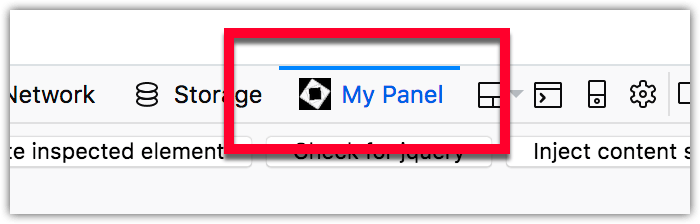
A developer tools panel is added using the
devtools.panels
API, which in turn needs to be run from a special devtools page.
Add the devtools page by including the
devtools_page
key in extension's
manifest.json
and provide the location of the page's HTML file in the extension:
"devtools_page": "devtools-page.html"
From the devtools page, call a script that will add the devtools panel:
<body>
  <script src="devtools.js"></script>
</body>
In the script, create the devtools panel by specifying the panel's title, icon, and HTML file that provides the panel's content:
function handleShown() {
  console.log("panel is being shown");
}
function handleHidden() {
  console.log("panel is being hidden");
}
browser.devtools.panels.create(
  "My Panel",           // title
  "icons/star.png",           // icon
  "devtools/panel/panel.html"          // content
).then((newPanel) => {
  newPanel.onShown.addListener(handleShown);
  newPanel.onHidden.addListener(handleHidden);
});
The extension can now run code in the inspected window using
devtools.inspectedWindow.eval()
or by injecting a content script via the background script by passing a message. You can find more details on how to do this in
Extending the developer tools.
For details on how to design your developer panel's web page to match the style of Firefox, see the Photon Design System 文档编制。
For details on how to create icons to use with your developer tools panel, see Iconography 在 Photon Design System 文档编制。
webextensions-examples repository on GitHub includes the devtools-panels example which implements a devtools panel.
最后修改: , 由 MDN 贡献者
